How to Export Your Revolut Statement to Excel — and Find the Money Leaks
You open Revolut every day. But scrolling isn’t reading. The transactions blur past — a coffee, a top-up, a delivery — and at the end of the month the account is almost empty again, and you can’t say exactly why.
Here’s the shortcut most people miss: Revolut lets you export your whole statement to Excel in about 30 seconds. Once it’s a spreadsheet, the leaks you can’t see in the feed become obvious. This is how to do it, and what to look for once the file is open.
New to this? Start with how to read your bank statement — then come back for the Revolut shortcut.
Why the app feed hides your spending
The feed shows one transaction at a time — €127 here, a delivery there. Each looks small on its own, and a running list of charges never adds up to where your money went.
Excel does the one thing the feed can’t: it lets you add things up. Same merchant three months in a row is a subscription you forgot about. Forty small orders add up to a whole category on their own.
Step 1: Export your statement to Excel
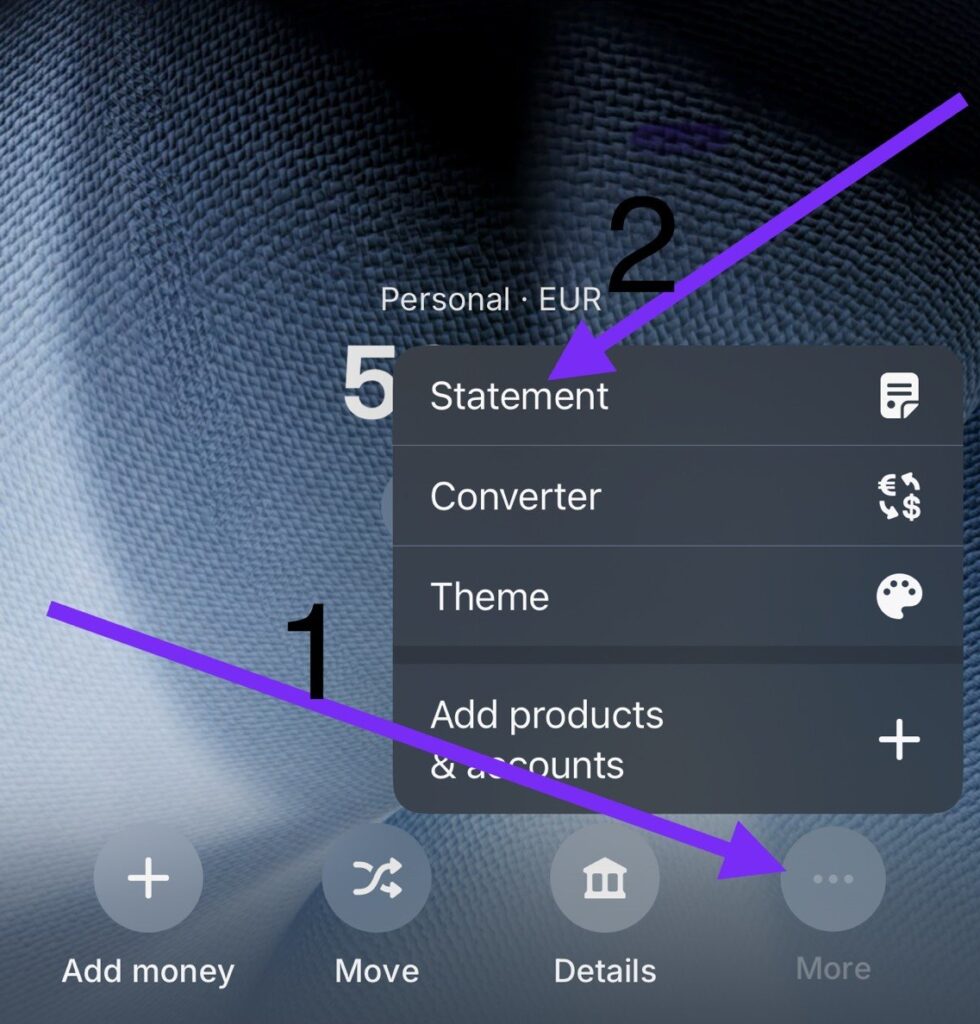
Open the Revolut app. Tap More (the “···” button), then Statement.
Choose Excel, not PDF. Set the period — go for at least 3 months, because some charges bill quarterly and a single month would miss them. Then tap Generate.
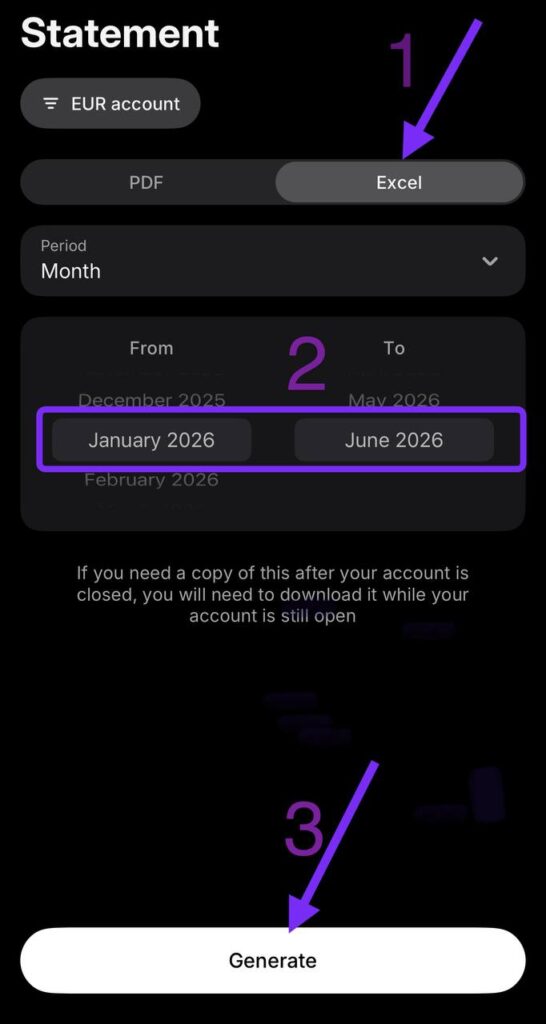
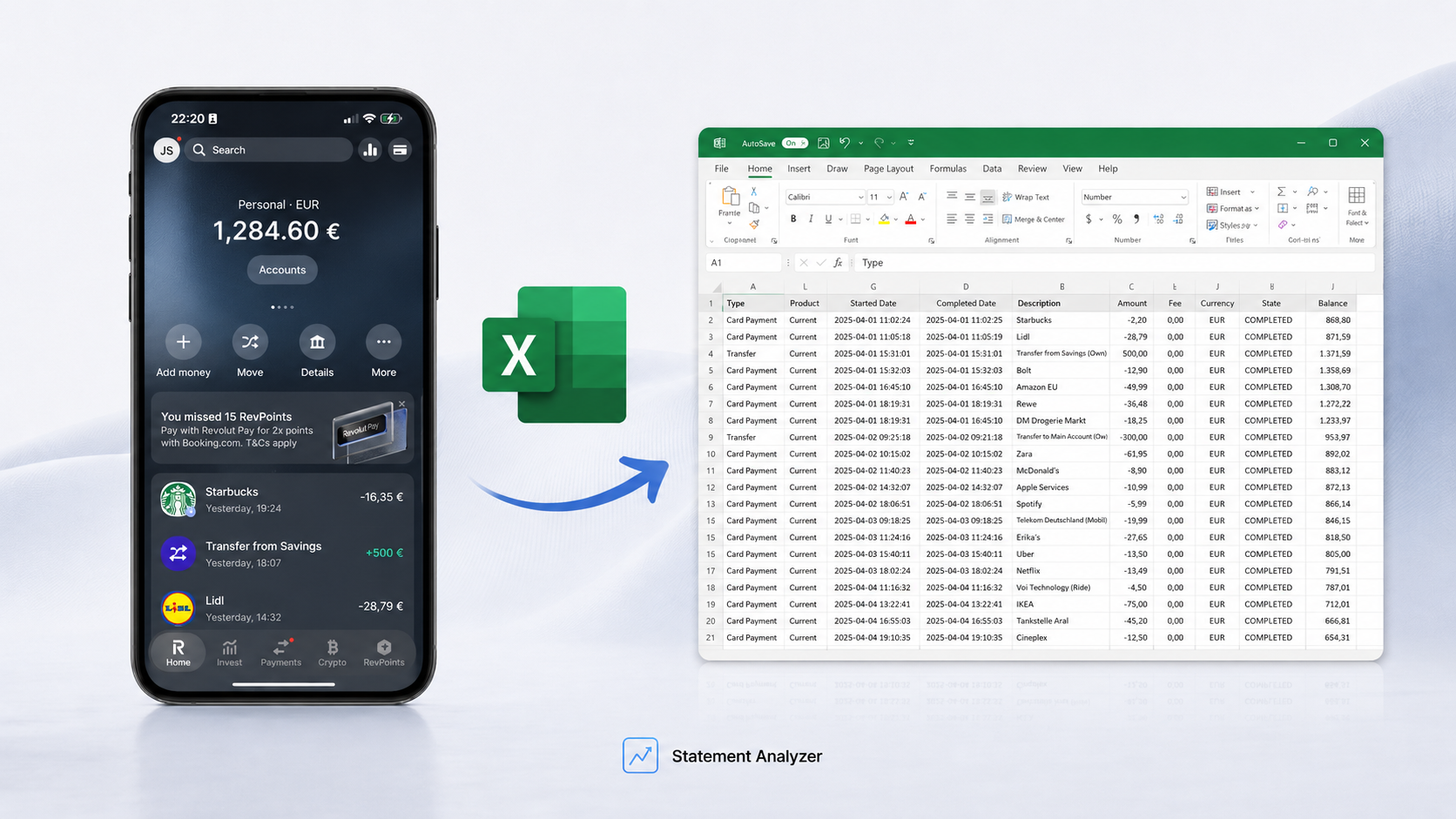
That’s it. You get a clean .xlsx with every transaction — no bank login, no third-party app, no copy-pasting screenshots.
One Revolut detail worth knowing: there’s a “Fee” column most people skip past. It’s 0.00 on almost everything, but it quietly catches weekend exchange markups and ATM withdrawals over your free limit. Scan it once — it tells you what your fintech costs you in the gaps.
Step 2: What to look for once it’s open
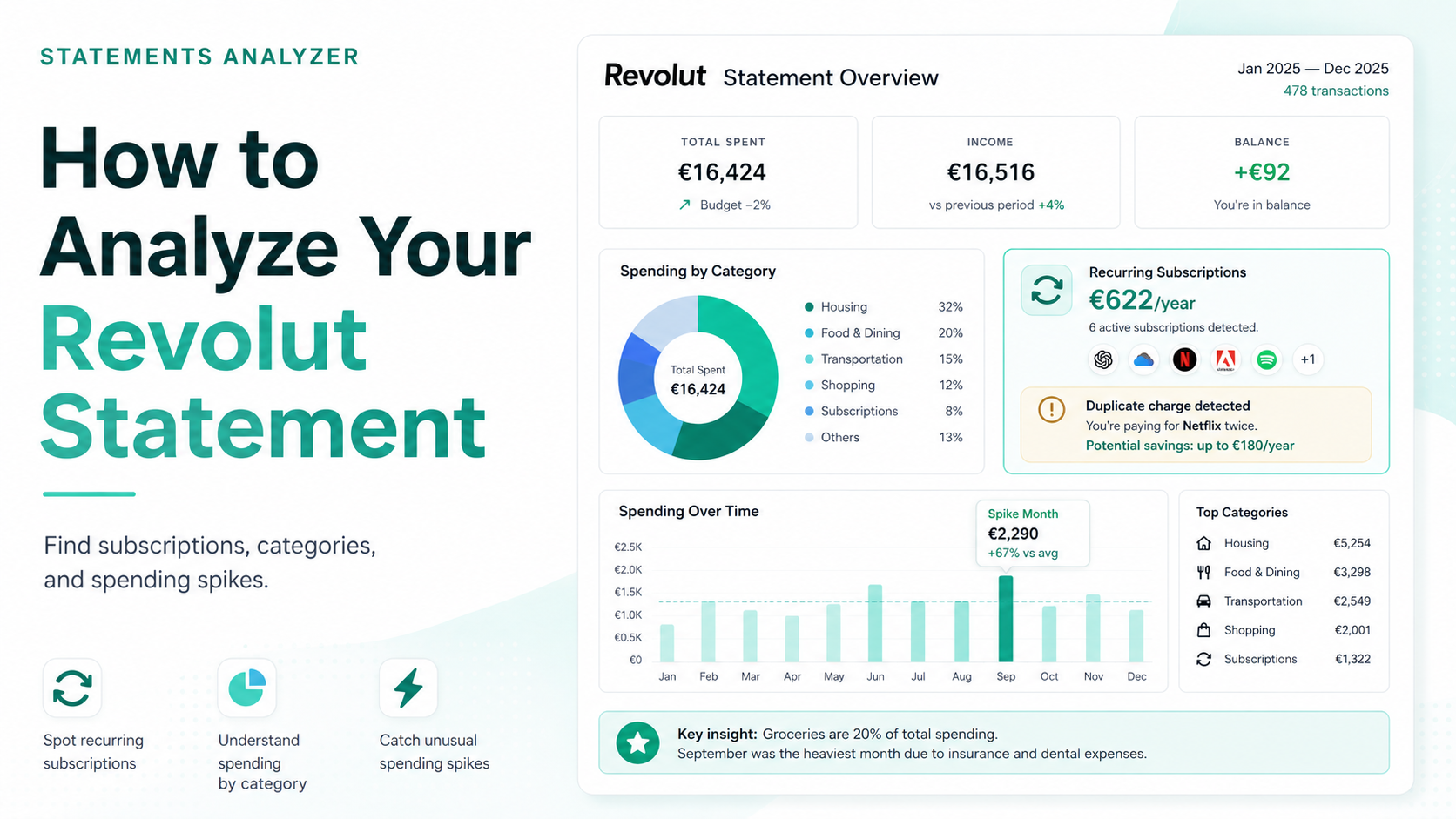
We ran a real three-month Revolut statement through the report. 145 transactions, and three patterns stood out right away — the kind you’ll probably recognise in your own.
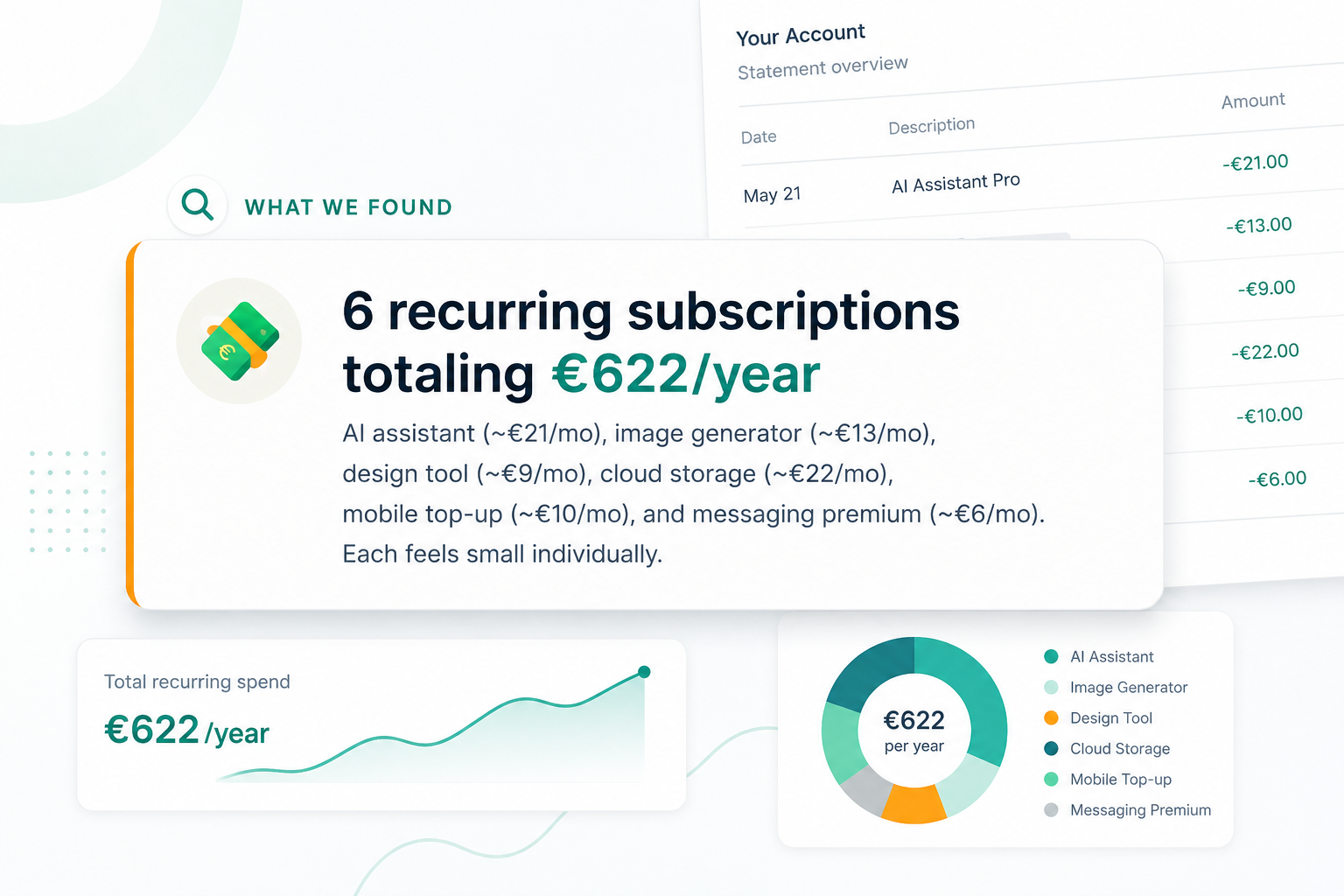
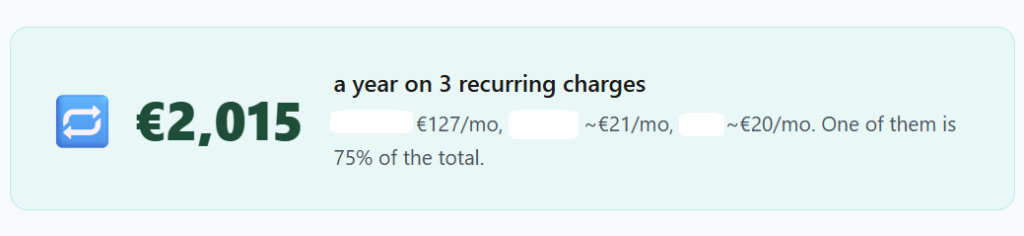
The first was recurring charges. Three subscriptions added up to €2,015 a year, and one of them was 75% of that on its own — €127 leaving the account every month, on autopilot. In the feed it’s one forgettable line. Over a year, it pays for a holiday.
The second was concentration. Food was 42% of everything spent on the account — €2,182, split almost evenly between groceries and eating out. No big nights out drove it, just ordinary days.

The third was small orders. Delivery alone came to €527 over three months, about €176 a month. No single order ever felt big enough to notice.

It’s hard to control spending when you only see it one payment at a time. The pattern appears only when everything is added up.
Read it yourself — or skip the reading
Export the file, sort by merchant, and you’ll find your own leaks — the subscriptions, the categories, the small orders that add up. It takes an hour and a bit of spreadsheet patience.
Or upload the same statement to our bank statement analyzer and get the report done for you — recurring charges, your biggest categories, your expensive months — in plain language, not raw rows.
→ See where your Revolut money goes
Not sure yet? Take a look at a sample report first — the same kind of breakdown, on a real statement.
Revolut statement FAQ
Open the Revolut app, tap More, then Statement. Choose Excel instead of PDF, pick your date range, and tap Generate. You’ll get an .xlsx file listing every transaction in that period.
The in-app export gives you Excel (.xlsx) or PDF, not CSV directly. The Excel file opens in Google Sheets, Numbers or any spreadsheet app, and you can save it as CSV from there if you need one.
At least three. One month is just a snapshot, while three months show your real patterns and catch subscriptions that only bill every quarter. You can set any From–To range you want.
You can spot recurring subscriptions, food and delivery spending, cash withdrawals, fees, currency exchange costs, repeated merchants, and small payments that add up.
Before uploading, check what data the service needs and remove anything unnecessary. A spending analysis usually needs transaction dates, descriptions, amounts, currency, and fees, but not your card number or login details.